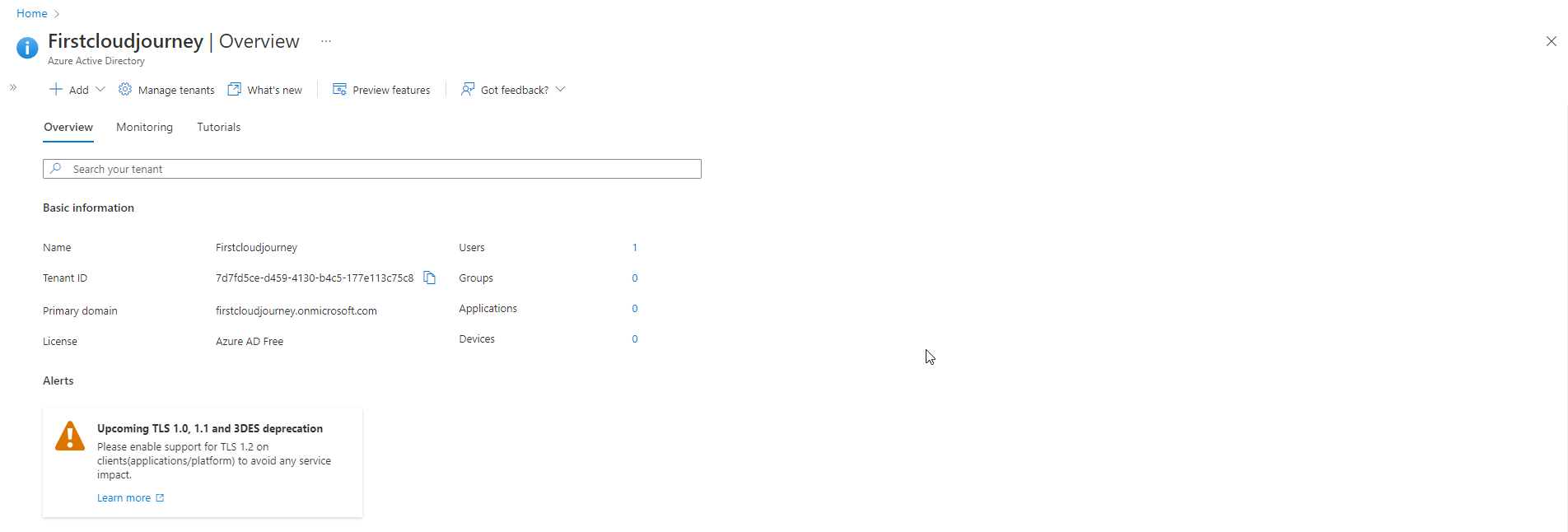
Initialize Azure Active Directory
Overview
Azure Active Directory (Azure AD) is a cloud-based identity and access management service. This service helps you access external resources, such as Microsoft 365, Azure portals, and thousands of other SaaS applications. Azure AD also helps them access internal resources. These are resources like apps on your corporate and intranet, along with any cloud apps developed by your organization
Azure AD User
-
IT Admin: use Azure AD to control access to your apps and application resources, based on your business requirements. For example, you can use Azure AD to require multi-factor authentication when accessing your organization’s critical resources. You can also use Azure AD to automatically provision users between your existing Windows Server AD and your cloud applications, including Microsoft 365. Azure AD gives you powerful tools to automatically help protect your users’ identities and credentials, and meet your access administration requirements.
-
App developer: use Azure AD as a standards-based approach to add single sign-on (SSO) to your app, allowing it to work with credentials user availability. Azure AD also provides APIs that can help you build personalized app experiences using existing organizational data.
-
Microsoft 365, Office 365, Azure, or Dynamics CRM Online subscribers: Each Microsoft 365, Office 365, Azure, and Dynamics CRM Online tenant is automatically an Azure AD tenant. You can start right away to manage access to your integrated cloud applications.
Azure AD license
- Azure Active Directory Free: Provides user and group management, on-premises directory synchronization, basic reporting, self-service password change for cloud users, and logins once on Azure, Microsoft 365, and many popular SaaS applications.
- Azure Active Directory Premium P1: P1 allows your hybrid users to access both on-premises and cloud resources. Advanced administrative support, such as dynamic groups, self-service group management, Microsoft Identity Manager, and cloud rewritability, enables self-service password resets for your on-premises users.
- Azure Active Directory Premium P2: provides Azure Active Directory Identity Protection to help provide Risk-Based Conditional Access to your applications and critical corporate and Administration data. privileged identity management to help discover, restrict, and monitor administrators and their access to resources, and provide just-in-time access when needed.
- “Pay as you go” feature licenses: You can also get additional feature licenses, such as Azure Active Directory Business-to-Customer (B2C). B2C can help you deliver identity and access management solutions for your customer-facing applications.
Azure AD initialization steps
- Log in to Azure Portal
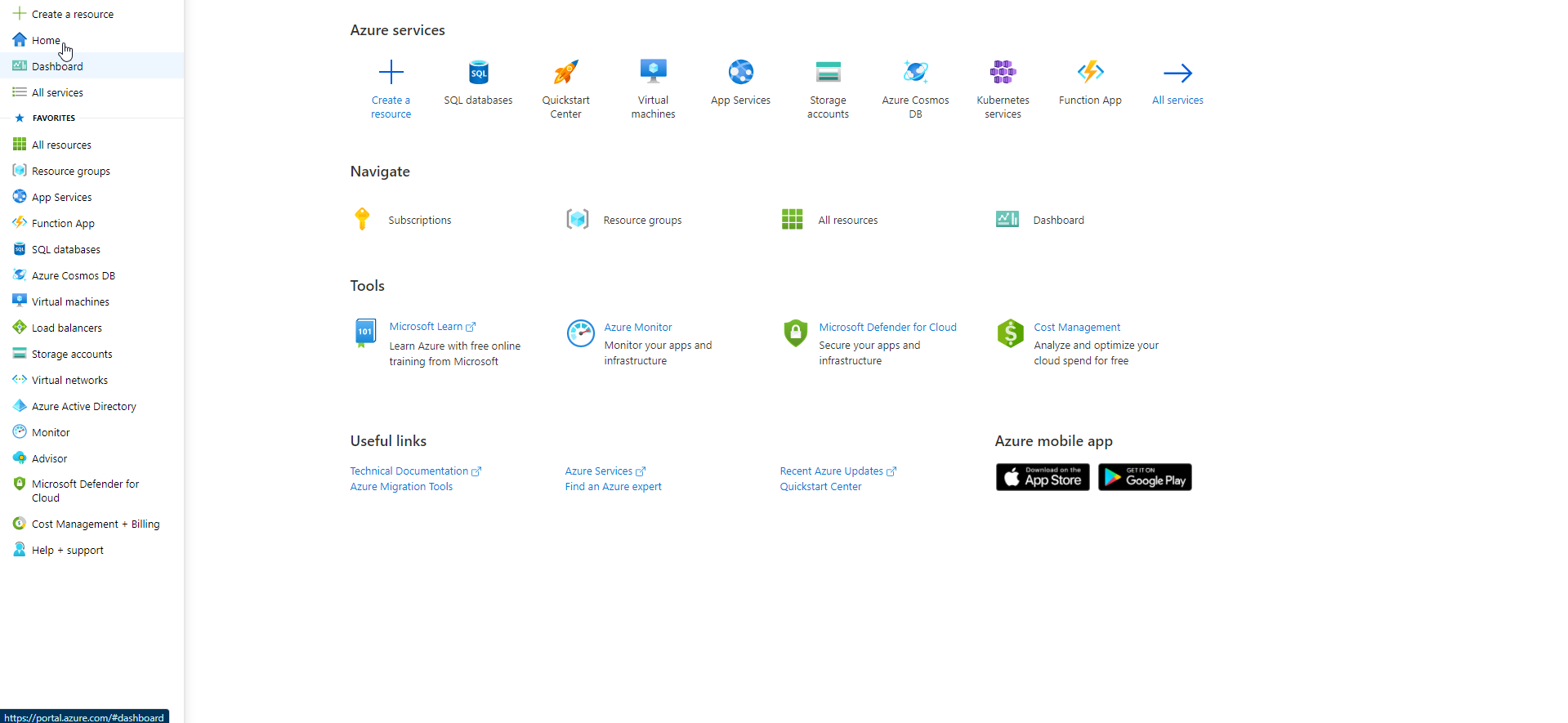
- Select Create a resource
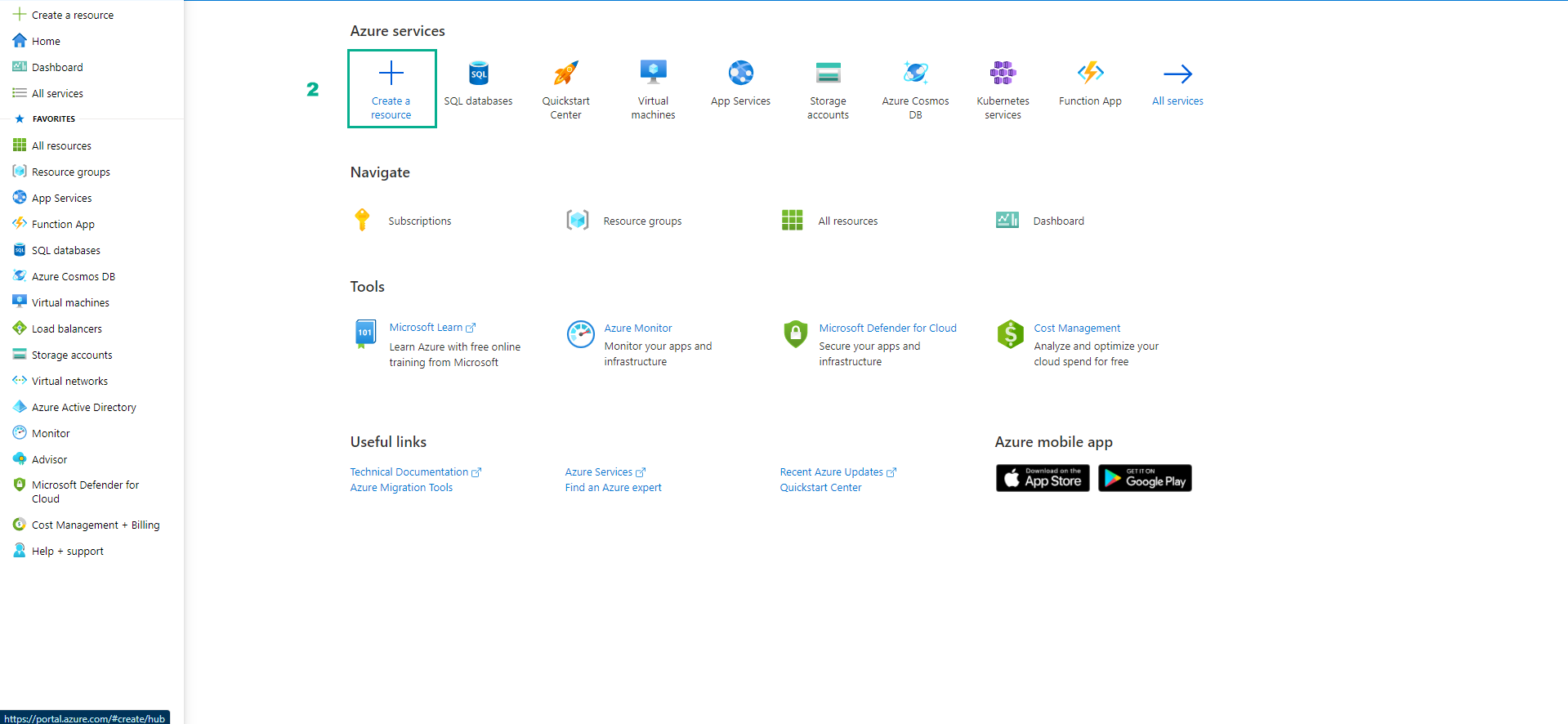
- In the Create a resource page, start searching for Azure Active Directory
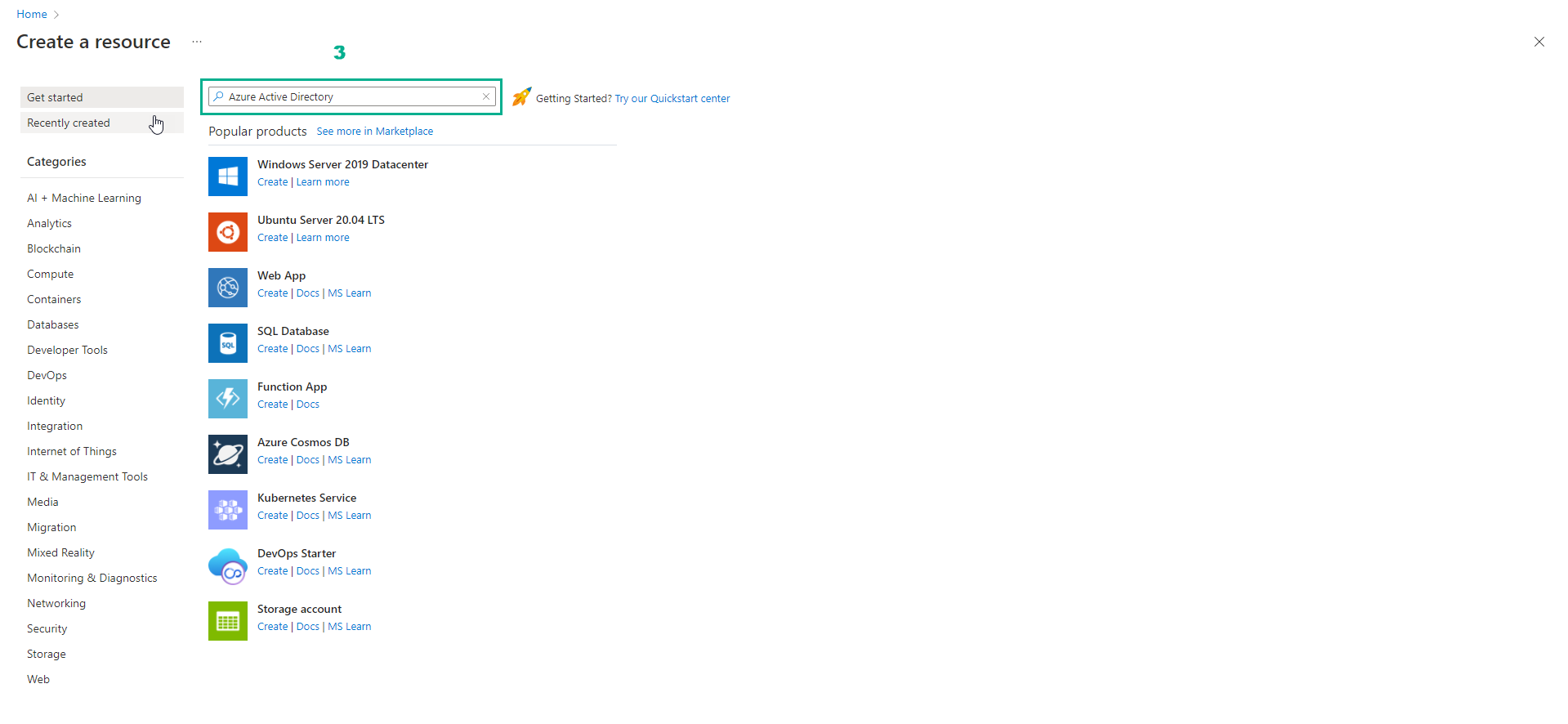
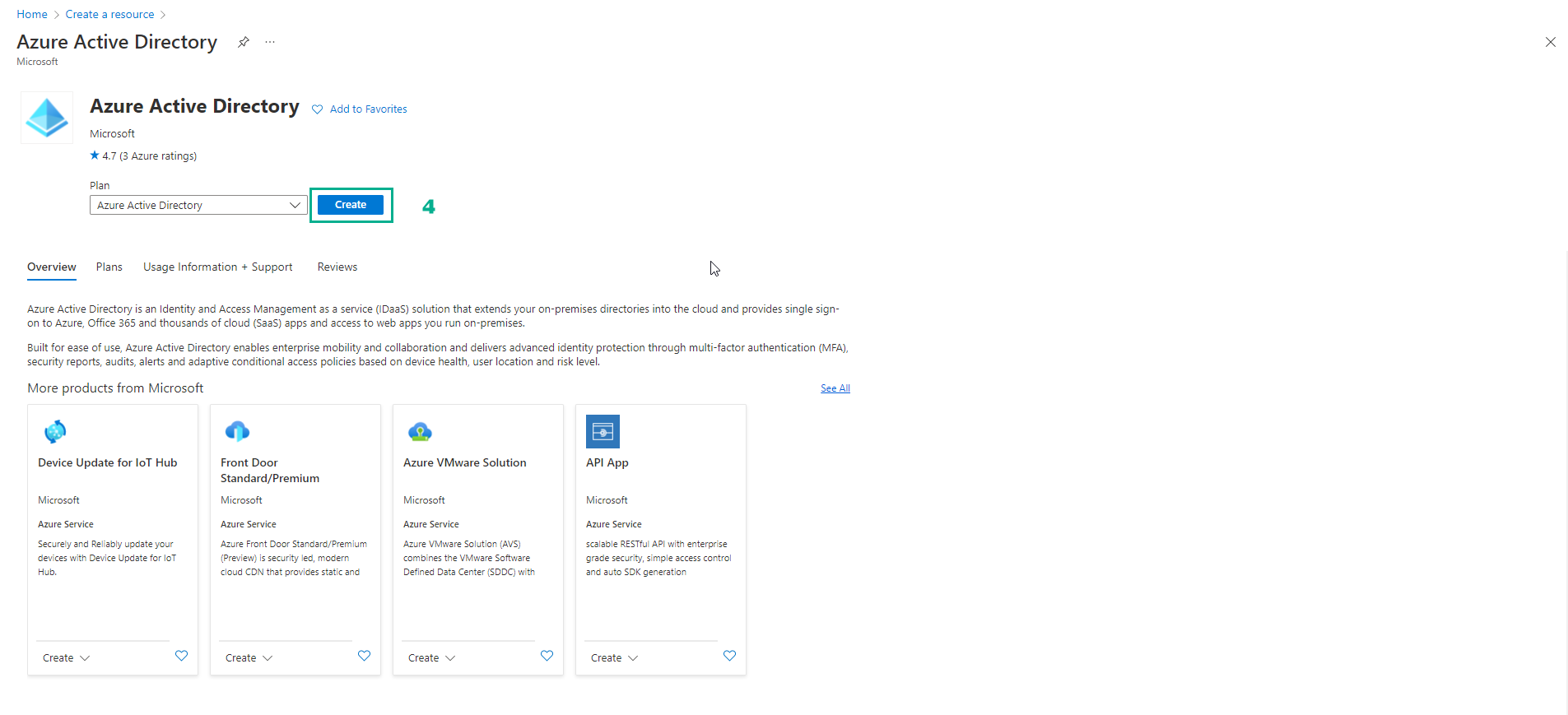
- The interface appears, select Create
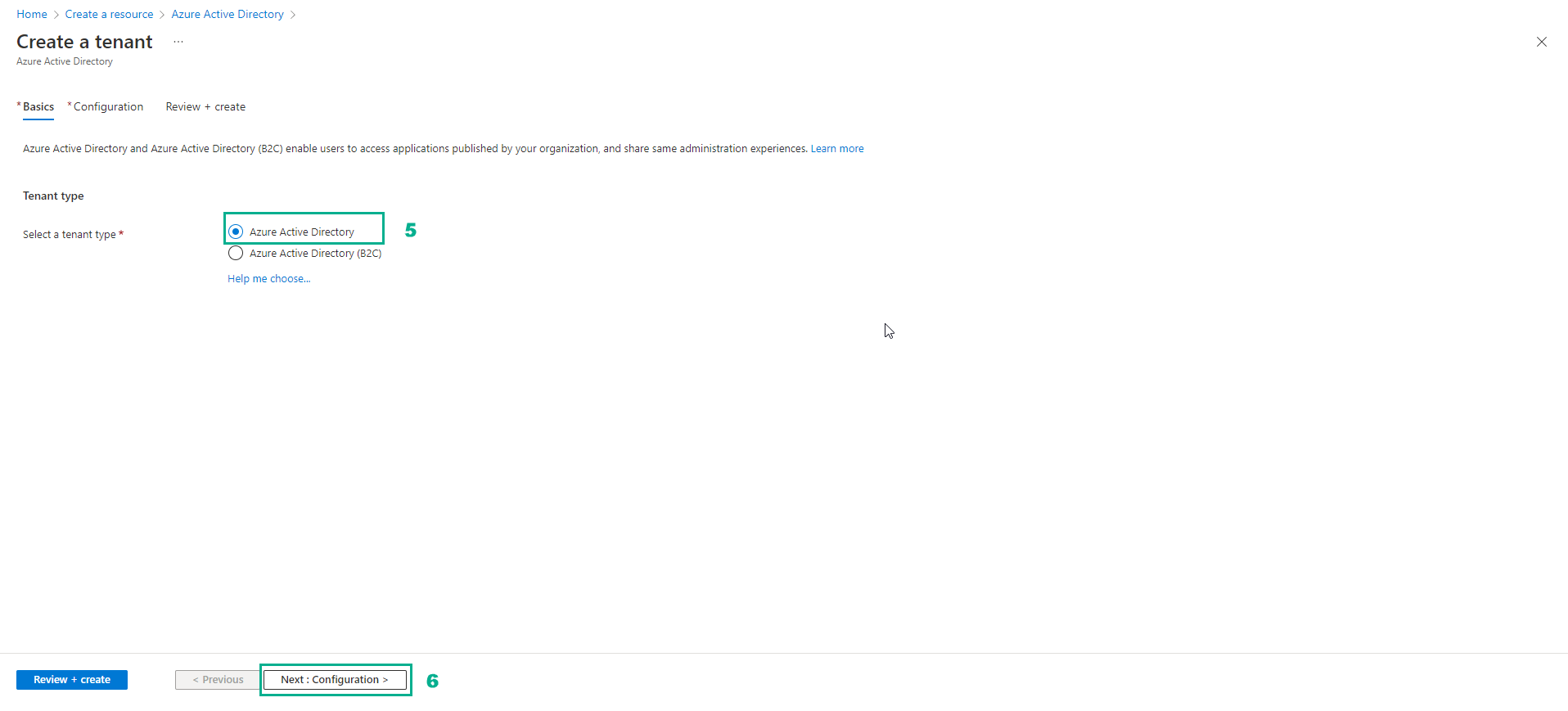
- In the Create a tenant page
- In the Tenant type section, select Azure Active Directory
- Select Next:Configuration
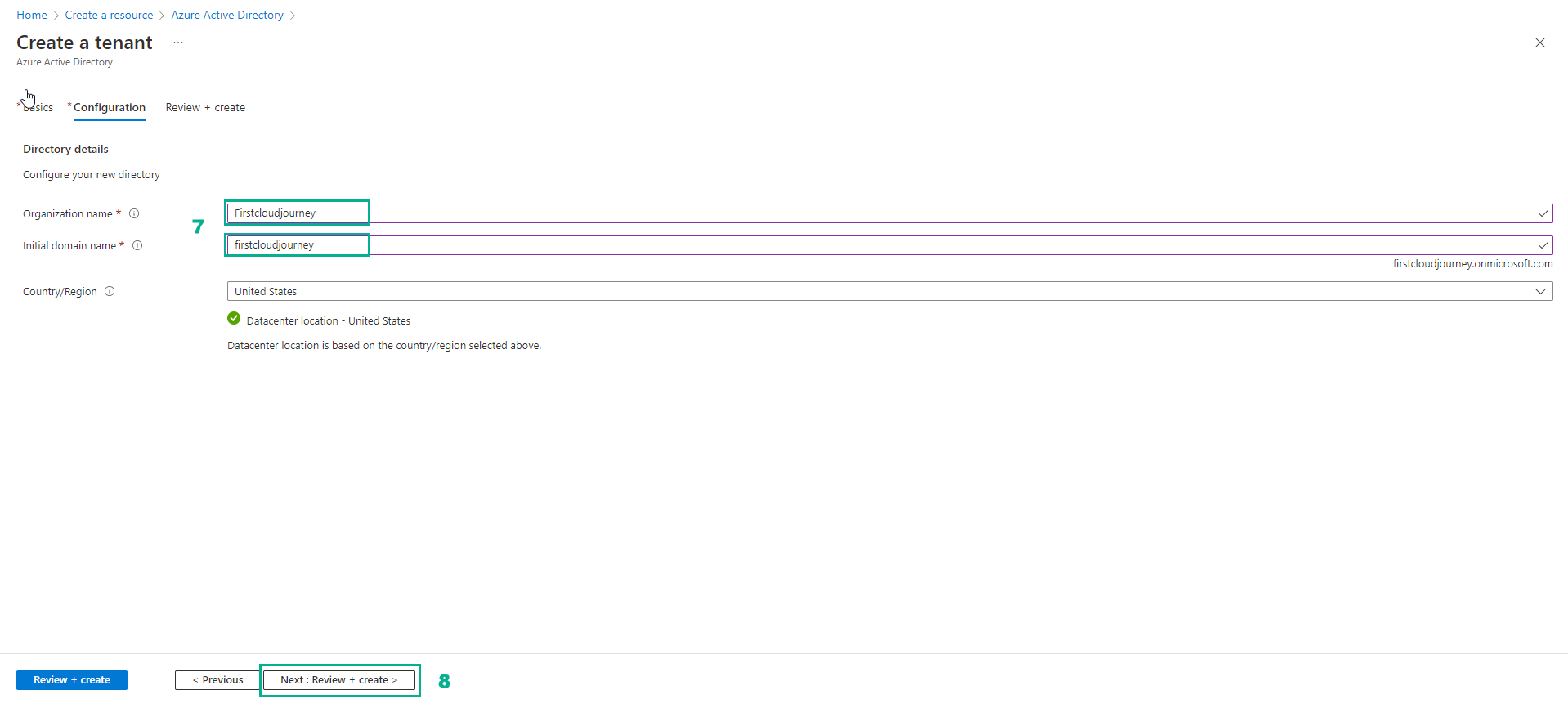
- In Configure your new directory
- Organization name, Enter the name Azure AD (Note that the name must be unique). Example:
Firstcloudjourney - Initial domain name, enter
firstcloudjourney
- Select Next: Review + create
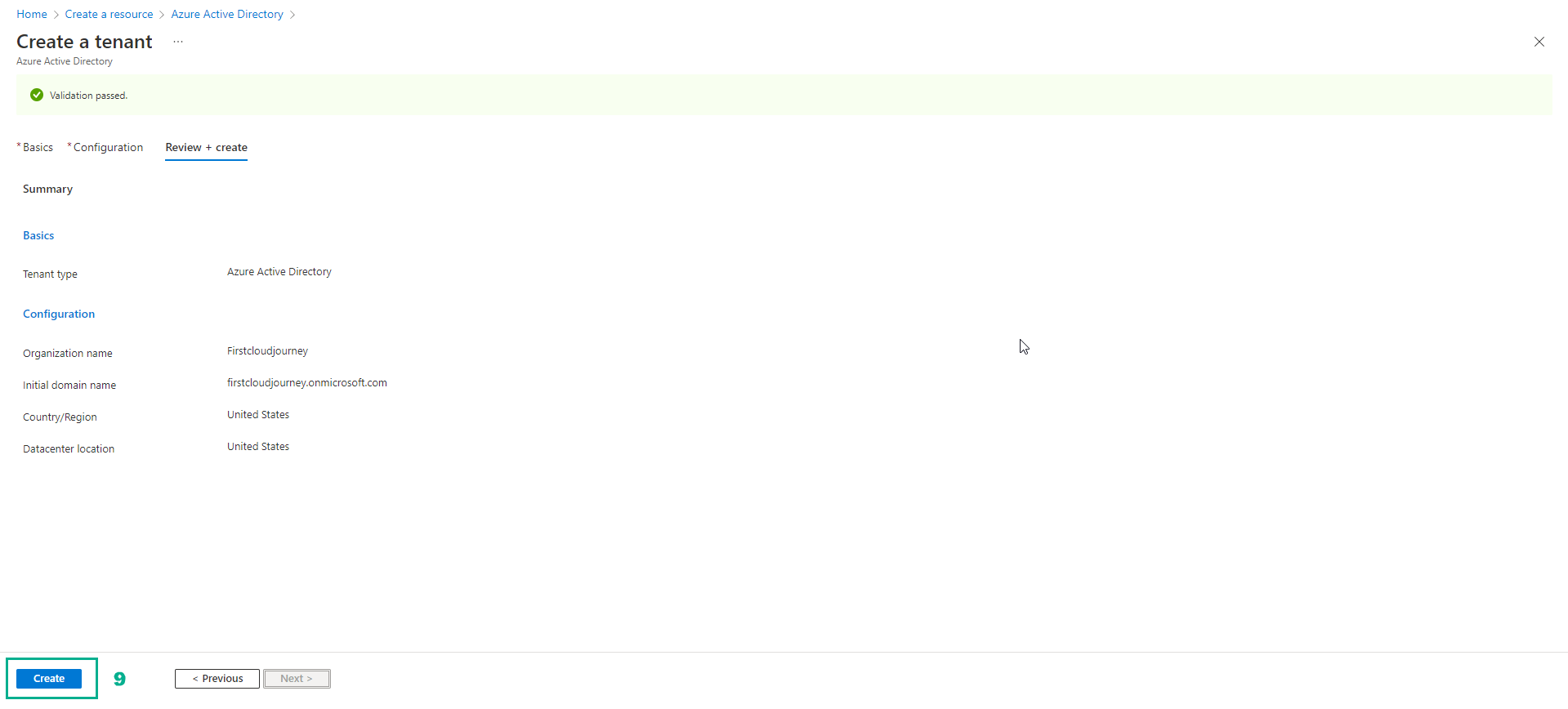
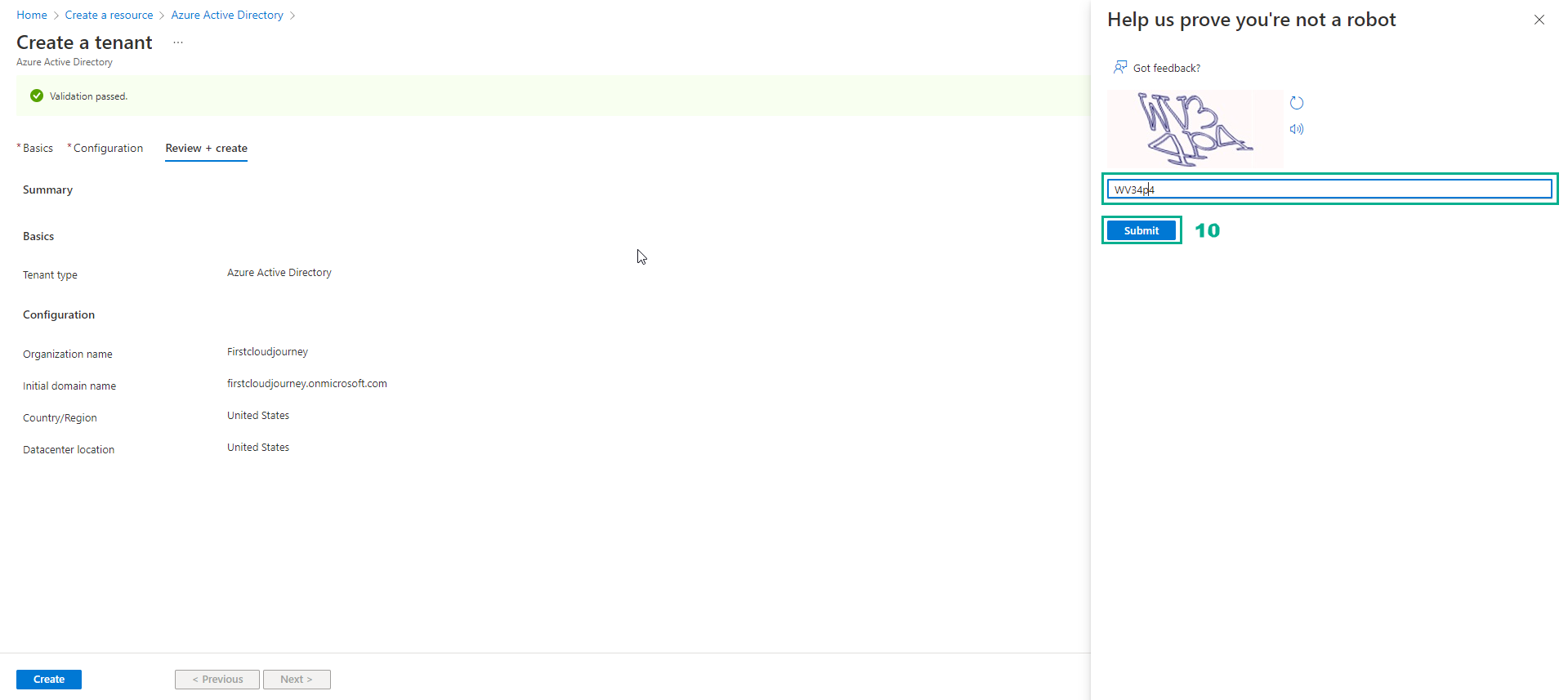
- Check again and select Create
- You may be asked to enter a captcha for authentication
- Enter captcha
- Select Submit
-
Then wait a few minutes you will have Azure AD.
-
You select your tenant’s name to view information.
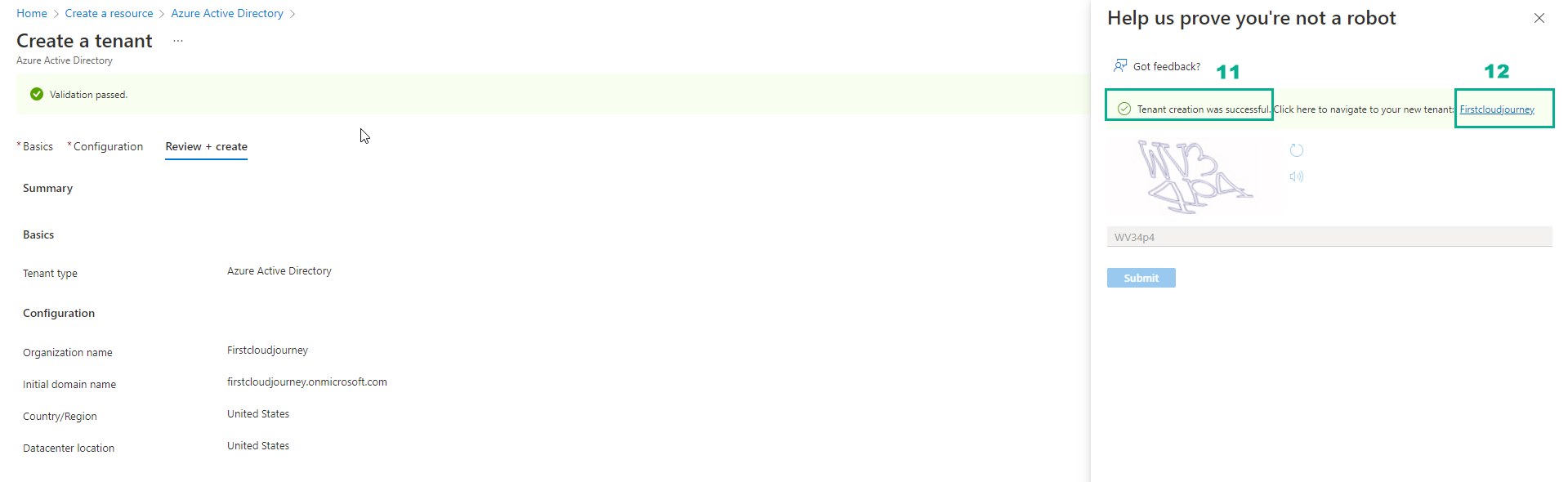
- If you see the same result, you have completed this step. We go to the next step, which is to create some users on Azure AD to use that user to log in to AWS later.